

Two ways to use Onboarding in a SMARTFENSE implementation
The most repeated question in an implementation is what is still left to configure. The manual explains how each thing is done, but it says nothing about the state your instance is in right now, and that gap between the documentation and the actual account is what stretches a rollout.
What is the Onboarding section?
Onboarding is the section of the platform that brings every configuration of an implementation into one place, recognises the ones already done and flags the ones worth reviewing.
What sets it apart from a manual is state. When you open it, the platform has already checked whatever it can check on its own and hands you a view of where you stand, rather than a list of everything that exists.
Onboarding is split into independent sections, and each one advances at its own pace depending on what you configure. There is no mandatory top-to-bottom order.
How Onboarding is organised
Each section groups the configurations of one stage: the initial ones, simulation delivery, user management, the mail server, the end-user view, gamification, integrations and the first campaign. Overall progress updates as you go, and green marks what is complete. A section with no green is the signal that something is pending there.
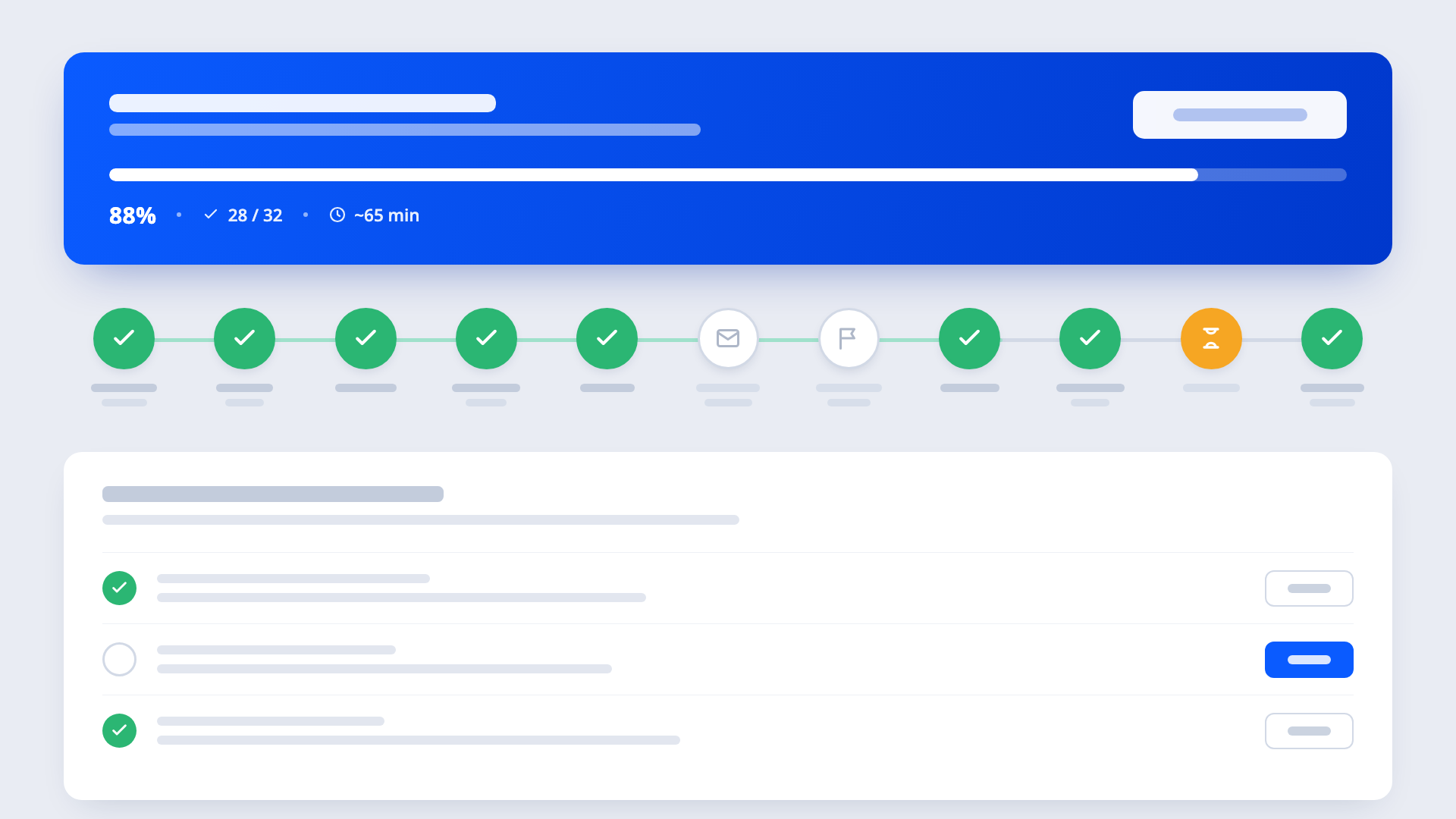
The buttons change according to what the platform can verify by itself:
- Confirm current configuration accepts the SMARTFENSE default without touching anything. It works when the default is enough, such as using the SMARTFENSE mail server instead of setting up your own.
- Go to configure takes you to the screen where the step is resolved, and brings you back to Onboarding when you are done.
- Mark as completed appears when the step is resolved outside the platform and there is nothing left for the platform to check.
- View opens what is already configured, so you can review it without modifying it.
- Go to fix appears when a configuration ends up in an alert state, with direct access to the screen that triggered it and the error detail.
What is the «Verify configurations» button for?
There is a button in the top right corner that triggers a manual check of the whole instance. It goes through the configurations, checks them again and warns you if a problem shows up.
It is the button that pays off most in accounts that are already running, because many configurations change without anyone touching them from the platform. A DNS record that gets modified, a new mail rule on the server or a change in the user directory are enough to break something. The manual check is how you find out before an end user does.
New instance and active account, two different uses
In a new instance, Onboarding orders the work. It tells you what comes next, and it keeps the first campaign from going out with delivery half configured.
In an account that is already running, the value is different. You open the section, trigger the verification and you have the real state of the account on screen, without relying on the memory of whoever implemented it or on a parallel document somebody was supposed to keep up to date. For anyone managing several accounts, that is the more frequent of the two uses, and the one worth turning into routine before every review with the client.
The three configurations that generate the most questions
Of everything the section covers, these three are the ones that most often end up in a ticket.
-
Corporate domain validation. The platform requires you to validate the domain to prove it belongs to the organisation, and that validation is what makes the phishing report button work. The procedure means generating a record and loading it with your DNS provider, so it is not resolved on the spot. When validation does not take effect immediately, count on anything from a couple of hours to a day. Get this step out of the way before you need it, because it blocks the steps that come after.
-
Mandatory two-factor authentication. It can be set as optional or as mandatory. If you choose mandatory, every administrative user will have to activate it the next time they access the instance, so it is worth telling the team before you change the setting rather than after. The same applies to session duration and the password policy, which are set in the same section along with the authentication method.
-
The first real campaign. The step is marked as completed only once a real campaign exists. Test campaigns run beforehand do not complete it, and that is a common source of confusion. You run tests, progress does not move and it looks as if the configuration got stuck. If you are about to create the first campaign this week, it helps to know that before hunting for an error that is not there.
What to have ready before the first campaign
Three things are worth resolving in this order. Start with the initial configurations, because everything else rests on them. Move on to the delivery configuration, because a problem there surfaces once the campaign is already out. And close domain validation before you need it, given how long it can take.
With that settled, the verification button tells you whether anything is still open, and the remaining sections can be completed while the programme is already running. You do not need to reach 100% to launch the first campaign, although completing every configuration is what leaves the instance ready to make use of the whole platform.
If a question about a specific configuration comes up along the way, the Help Center has the step-by-step documentation and an AI agent for one-off questions. And if you would rather have someone from the team alongside you during the rollout, there is the Implementation Service.

Leave a Reply